Critical Errors in Semrush Site Audit (And How to Fix Them)

A well-optimized website is crucial for SEO success, and technical issues can severely impact search engine rankings if left unchecked. Semrush Site Audit is a powerful tool that helps website owners identify critical errors affecting site performance, crawlability, and search visibility. These errors—from broken links and missing metadata to server and security issues—are the most severe problems detected in a site audit.
Key takeaways
- Errors are the most severe issues in a Semrush Site Audit and should be fixed before warnings and notices.
- Server (5XX) and client (4XX) errors, broken internal links and DNS problems stop pages being crawled and indexed.
- Duplicate or missing titles, missing meta descriptions and duplicate content weaken how pages appear and rank in search.
- Clean sitemaps, correct robots.txt rules and valid hreflang tags keep crawlers focused on the right URLs; AMP errors are usually best solved by removing AMP.
- Serve every page over HTTPS with 301 redirects from HTTP, fix mixed content, then re-run the audit to confirm fixes.
Unlike minor technical improvements, errors indicate fundamental flaws that can prevent search engines from properly indexing and ranking a website. If these issues persist, they can lead to lower search rankings, decreased organic traffic, and even a loss of credibility with search engines.
Fixing errors promptly is essential for maintaining a healthy, high-performing website. Search engines prioritise sites that are accessible, well-structured, and free from critical issues. Pages with broken internal links, incorrect URL structures, or missing security protocols can hinder user experience and send negative signals to search engine crawlers.
Common Errors Identified in Semrush Site Audit (With Fixes)
Technical Errors Affecting Website Accessibility
Ensuring that a website is accessible to both users and search engine crawlers is fundamental for SEO success. When critical technical errors arise, they can block pages from being indexed, disrupt user experience, and weaken overall site authority. The Semrush Site Audit detects various technical errors affecting a website’s accessibility.
Pages Returning 5XX Status Codes (Server Errors)
Definition and Impact on Website Availability
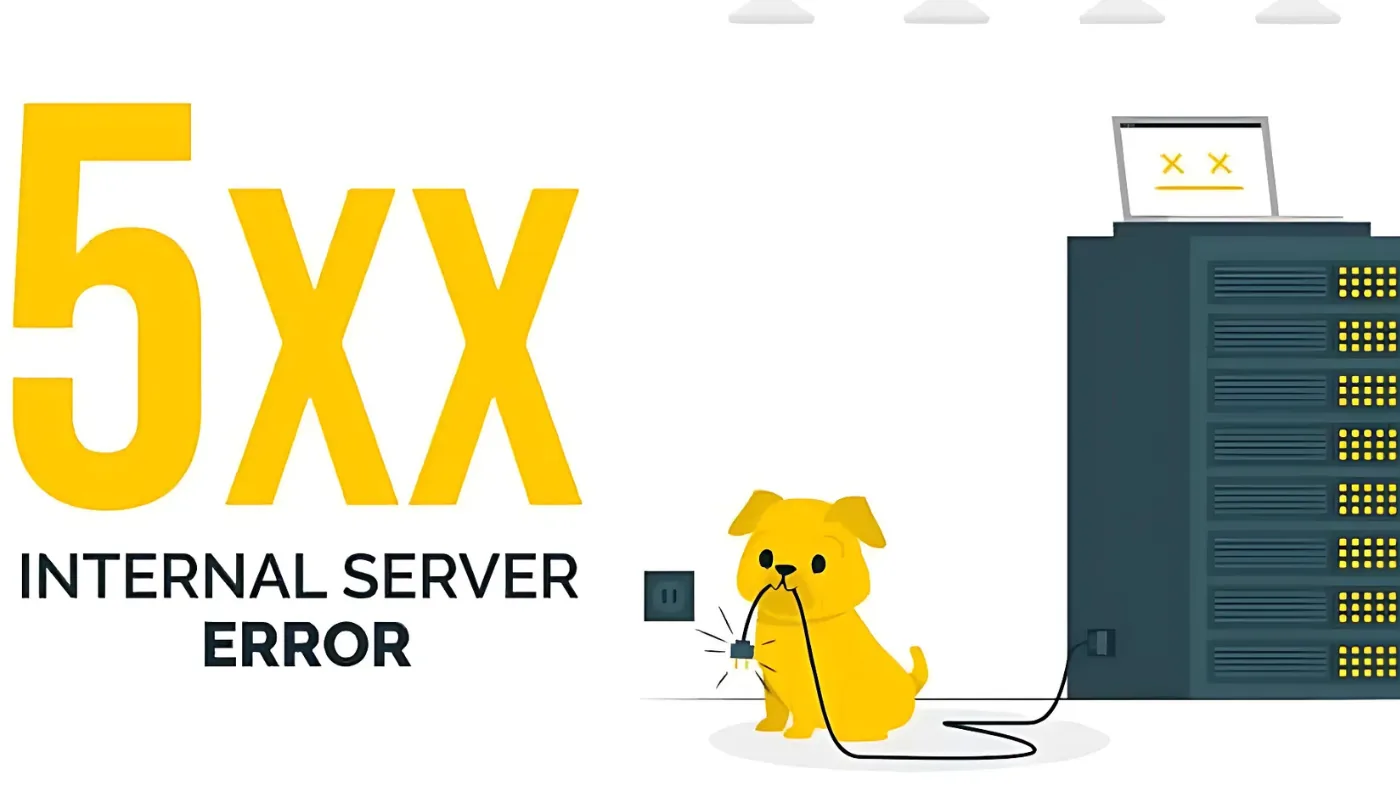
5XX status codes indicate server-side errors that prevent pages from being accessed by users and search engines. These errors occur when a server fails to fulfill a request, causing temporary or permanent downtime. If search engine bots frequently encounter 5XX errors, they may reduce the crawl frequency of your site, leading to indexing issues and a drop in rankings.
Common Causes
- Server overload: High traffic spikes or insufficient server resources
- Misconfiguration: Issues with server settings, database connections, or incorrect .htaccess rules
- Hosting problems: Poor hosting infrastructure, expired hosting plans, or maintenance downtime
Solutions
- Optimise server performance: Upgrade hosting plans if traffic exceeds current capacity.
- Check server logs: Identify patterns of failure and resolve configuration issues.
- Use a CDN (Content Delivery Network): Distribute server load for better uptime.
- Monitor uptime with tools: Services like UptimeRobot or Pingdom can track downtime and alert issues in real-time.
Pages Returning 4XX Status Codes (Client Errors)
Explanation of 404, 403, and 410 Errors
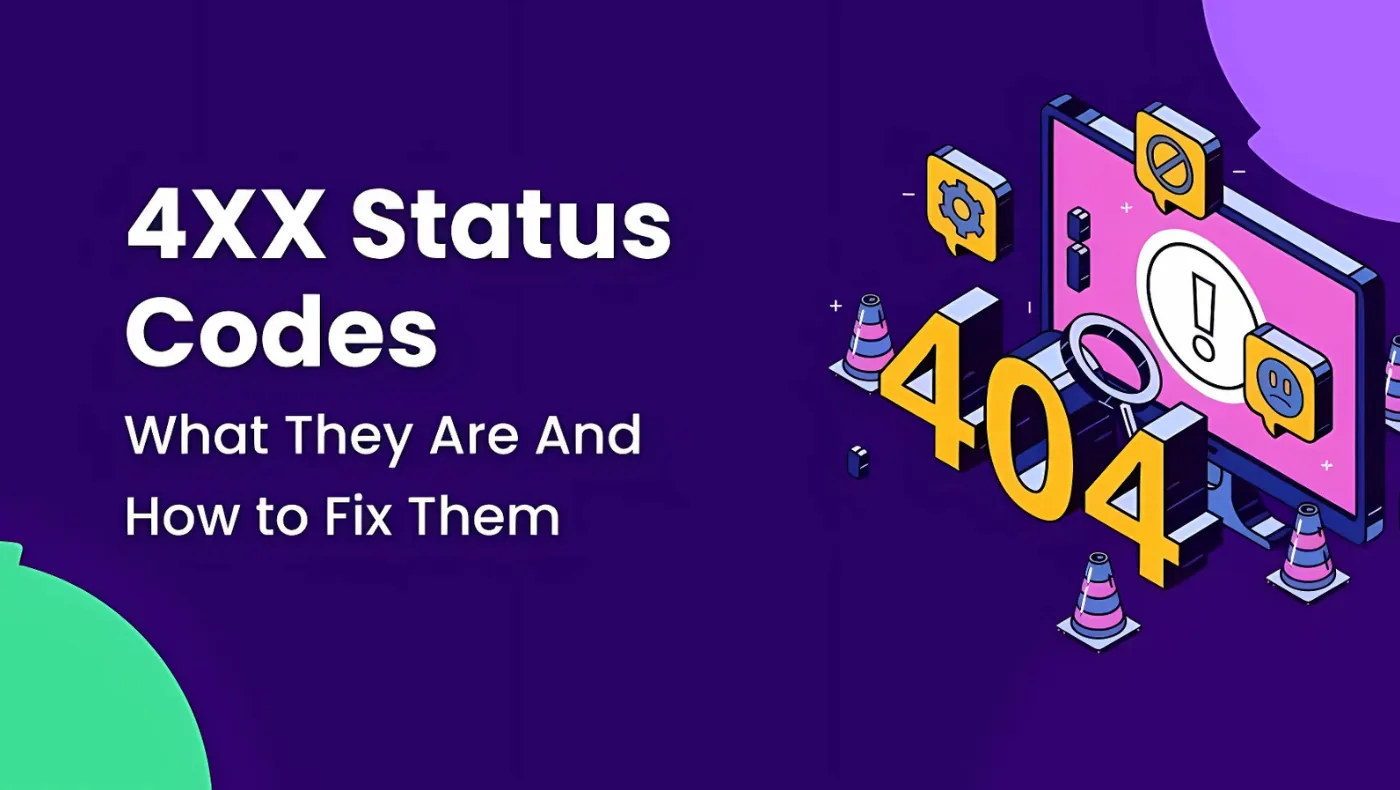
4XX errors indicate client-side issues where a webpage cannot be accessed due to incorrect requests or missing content. The most common status code types include:
- 404 Not Found: The page no longer exists or has been moved without proper redirection.
- 403 Forbidden: The server refuses access due to permissions or security settings.
- 410 Gone: The page has been permanently deleted with no forwarding address.
Causes
- Deleted or moved pages without redirects
- Incorrect URL entry or broken internal links
- Restricted access to pages due to incorrect permissions
Fixes
- Set up 301 redirects for permanently moved pages to direct users and crawlers to the correct URLs
- Update internal links to avoid broken navigation paths
- Check file permissions and ensure proper access settings for necessary pages
Broken Internal Links
How They Negatively Impact SEO and User Experience
Internal links are essential for website navigation and search engine crawling. Broken internal links lead to 404 errors, disrupt user journeys, and reduce the authority flow between pages, ultimately hurting rankings.
Tools to Detect Broken Links
- Semrush Site Audit (Detects broken links and provides status codes)
- Screaming Frog SEO Spider (Crawls websites to identify link errors)
- Ahrefs Site Audit (Highlights broken links and their referring pages)
Fixing Broken Links
- Use proper redirects (301) when content moves to a new location
- Regularly audit internal links and update outdated URLs
- Ensure proper linking structure to avoid orphaned pages (pages with no internal links pointing to them)
Broken Internal Images
Causes of Broken Images
- Deleted or moved images without updating the file path
- Incorrect image URLs in HTML or CSS
- CDN issues or external image hosting downtime
Solutions
- Check image URLs to ensure they point to the correct location
- Re-upload missing images and update file paths where necessary
- Use WebP format for optimised, faster-loading images
- Implement lazy loading to improve performance and prevent unnecessary image loading delays
Pages Not Crawled Due to DNS Issues

What DNS Resolution Errors Mean
Domain Name System (DNS) issues prevent search engines from resolving your domain, making your website inaccessible to users and crawlers. This can significantly impact indexing and rankings.
How to Diagnose Issues
- Use Google Search Console: open Settings, then Crawl stats, then Host status. DNS resolution failures are reported there (the old Crawl Errors report no longer exists).
- Run a DNS lookup with our free DNS Lookup tool or MXToolBox to verify domain settings
- Check Semrush Site Audit for DNS-related issues
Fixes
- Contact your hosting provider to resolve misconfigured DNS settings
- Verify DNS records (A Record, CNAME, MX, and TXT settings)
- Ensure your domain isn’t expired or misconfigured at the registrar
Pages with Incorrect URL Formats
Examples of Incorrect URL Structures
- Dynamic URLs with excessive parameters (e.g., example.com/page?id=123&ref=source)
- Mixed uppercase and lowercase characters (Causing duplicate content issues)
- Long, unreadable URLs with unnecessary words (e.g., example.com/buy-best-products-category-online-cheap-deals)
Impact on Search Engine Indexing
- Confuses search engines and may result in duplicate content indexing
- Reduces user experience and trust in the link
- Can cause keyword cannibalisation if multiple URLs serve similar content
Best Practices for SEO-Friendly URLs
- Use clean, short URLs (e.g., example.com/best-products)
- Keep URLs lowercase to avoid case-sensitive duplicate content issues
- Avoid unnecessary parameters and session IDs in URLs
- Use hyphens (–) instead of underscores (_) for better readability
On-Page SEO Errors
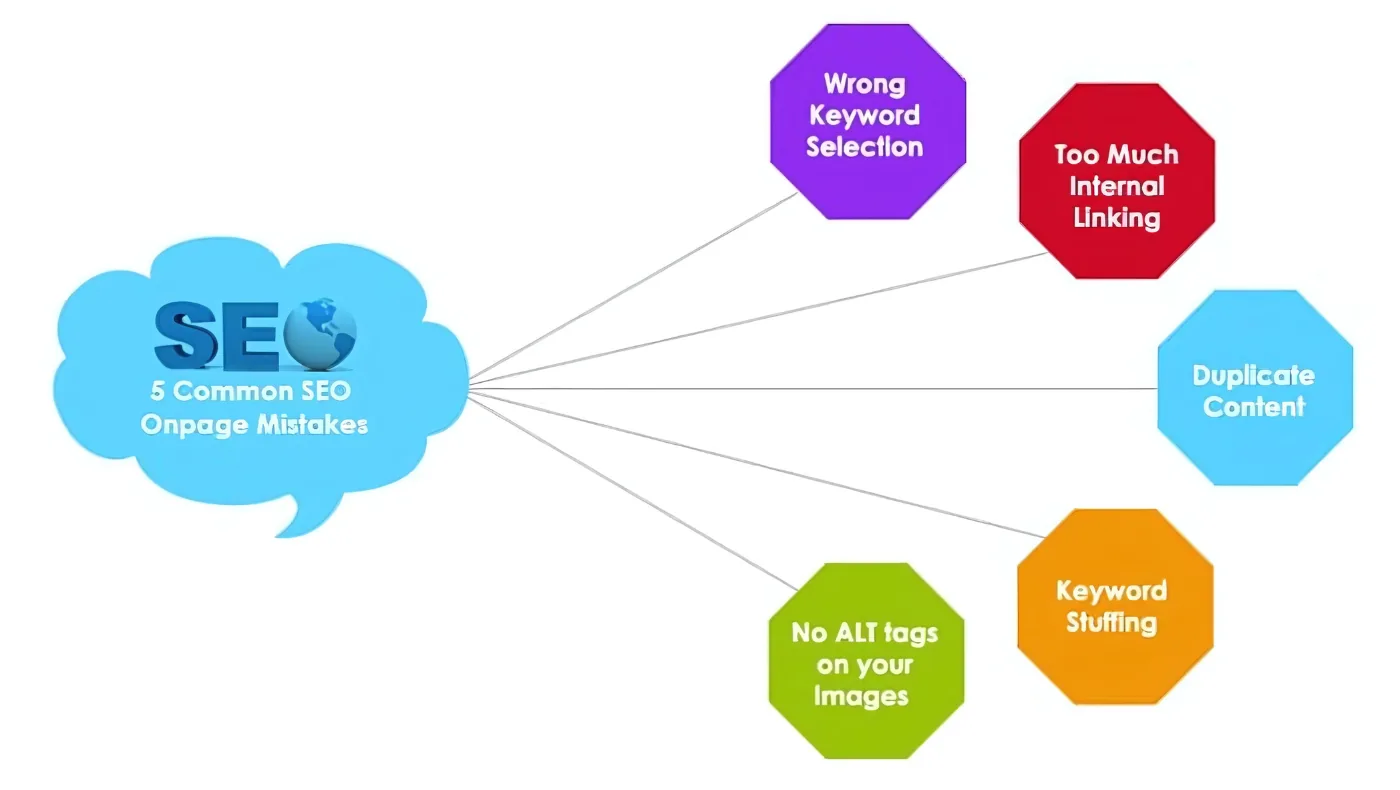
On-page SEO elements play a crucial role in helping search engines understand a webpage’s content and relevance. Errors in these areas, such as duplicate or missing metadata, improper content structuring, and indexing issues, can negatively impact search rankings and user experience.
Duplicate Title Tags
Why Duplicate Titles Confuse Search Engines
Title tags are one of the most important on-page SEO elements, as they help search engines understand a page’s topic. When multiple pages have the same title tag, it creates confusion for search engines, making it harder for them to determine which page is the most relevant for a search query. This can lead to:
- Keyword cannibalisation, where search engines struggle to prioritise the correct page
- Decreased rankings due to diluted SEO value across multiple pages
- Poor click-through rates (CTR), as identical titles in search results reduce user engagement
Fix: Implementing Unique, Keyword-Optimized Title Tags
- Ensure each page has a unique title that accurately represents its content
- Use primary keywords naturally while maintaining readability (e.g., “Best Laptops for Students | TechReviews”)
- Keep title length within 50-60 characters to avoid truncation in search results
- Use dynamic title tags for category and product pages to differentiate them (e.g., “Running Shoes – Nike vs. Adidas | Sports Gear Review”)
Missing Title Tags
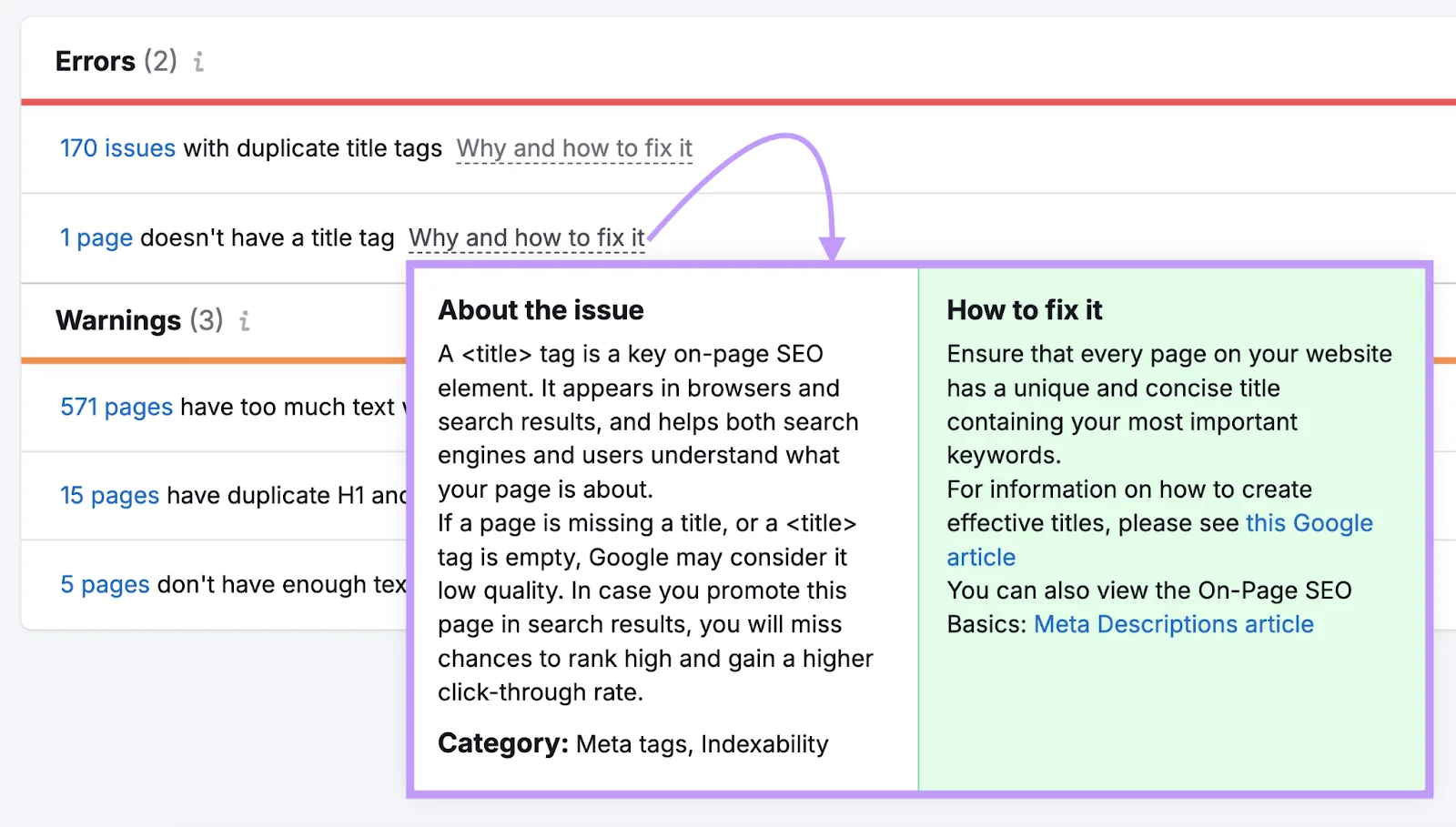
How Missing Titles Reduce Search Visibility
Title tags are a ranking factor influencing a webpage’s CTR in search engine results. Search engines often generate a default title without a title tag, which may not be relevant or optimised for search intent. This can lead to:
- Lower search visibility, as missing titles weaken the page’s ranking potential.
- Reduced user engagement, since users may see incomplete or auto-generated titles.
- Poor site structure, making it harder for crawlers to understand the purpose of a page.
Best Practices for Writing Compelling SEO Titles
- Include target keywords naturally at the beginning of the title
- Use action words or engaging phrases to improve CTR (e.g., “Learn SEO in 30 Days – A Complete Guide”)
- Align with user intent, ensuring titles match what people are searching for
- Avoid keyword stuffing, as unnatural titles can get penalised by search engines
Duplicate Content Issues
Causes of Duplicate Content
Duplicate content occurs when the same or very similar content appears on multiple URLs, either within the same website or across different sites. This can cause indexing confusion, where search engines struggle to determine the source of the content. Common causes include:
- Content scraping: Unauthorized duplication of content across multiple domains
- Poor site architecture: Multiple URLs serving identical content (e.g., /product and /product?id=123)
- Missing canonical tags: Search engines treating variations of the same content as separate pages
Fixes: Using Canonical Tags and Rewriting Duplicate Content
- Implement canonical tags (rel=”canonical”) to tell search engines which version of a page to index
- Rewrite similar content to ensure uniqueness and provide additional value to users
- Use 301 redirects to consolidate duplicate URLs into a single authoritative version
- Prevent duplicate product pages on e-commerce sites by ensuring proper URL structures and filtering parameters
Missing Meta Descriptions
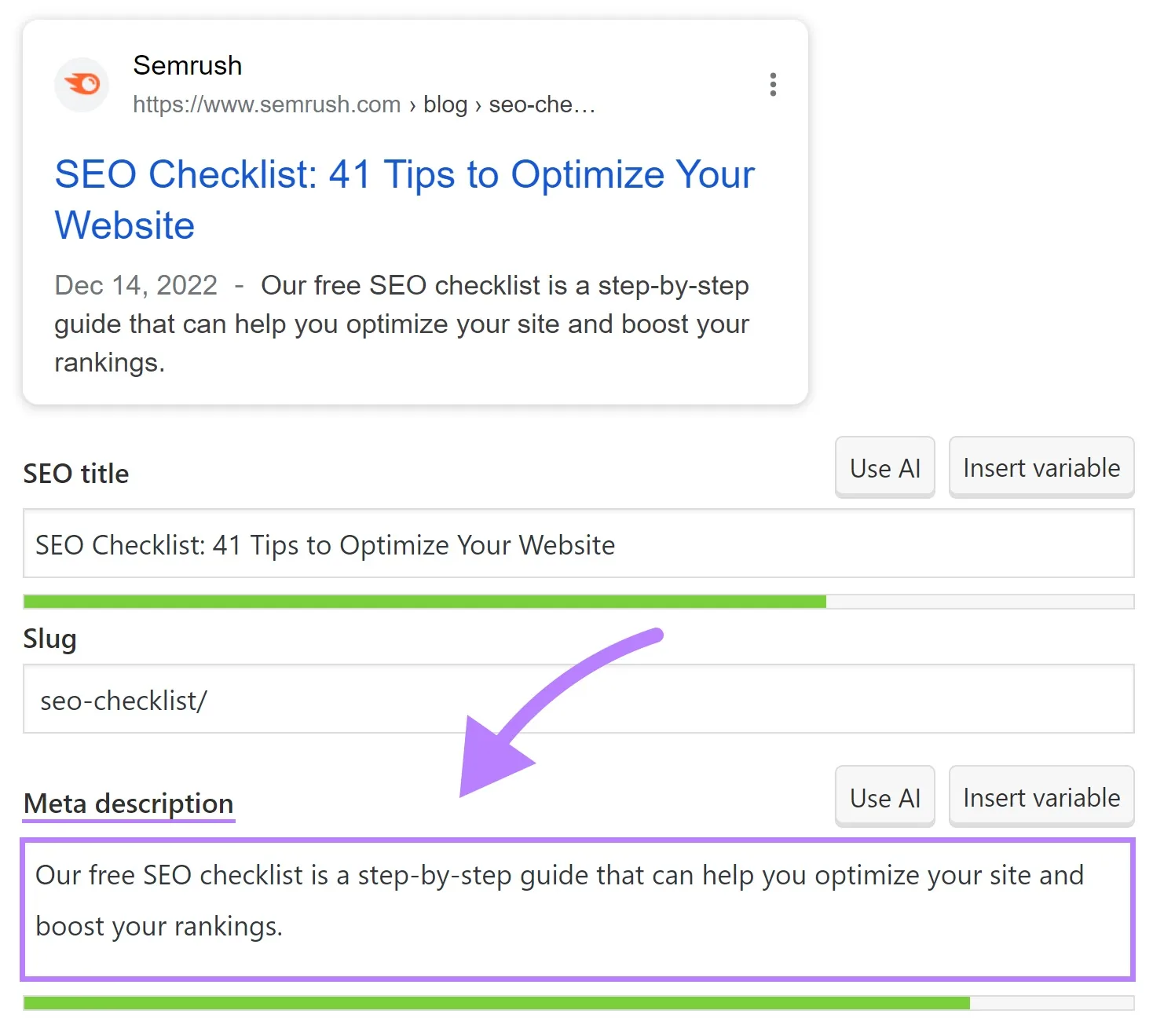
Why Meta Descriptions Impact Click-Through Rate (CTR)
A meta description summarises a webpage that appears in search engine results. While it is not a direct ranking factor, it plays a crucial role in influencing CTR. When a page is missing a meta description:
- Search engines generate one automatically, which may not be compelling or relevant
- Users are less likely to click, reducing organic traffic
- It can weaken brand messaging, as the page preview lacks control over what users see
Best Practices for Writing Compelling Meta Descriptions
- Keep meta descriptions between 150-160 characters to prevent truncation
- Incorporate primary keywords naturally without stuffing
- Use a call-to-action (CTA) to encourage clicks (e.g., “Discover the top 10 laptops for students – Read our expert review now!”)
- Ensure descriptions are unique across all pages to avoid duplicate content issues
Duplicate Meta Descriptions
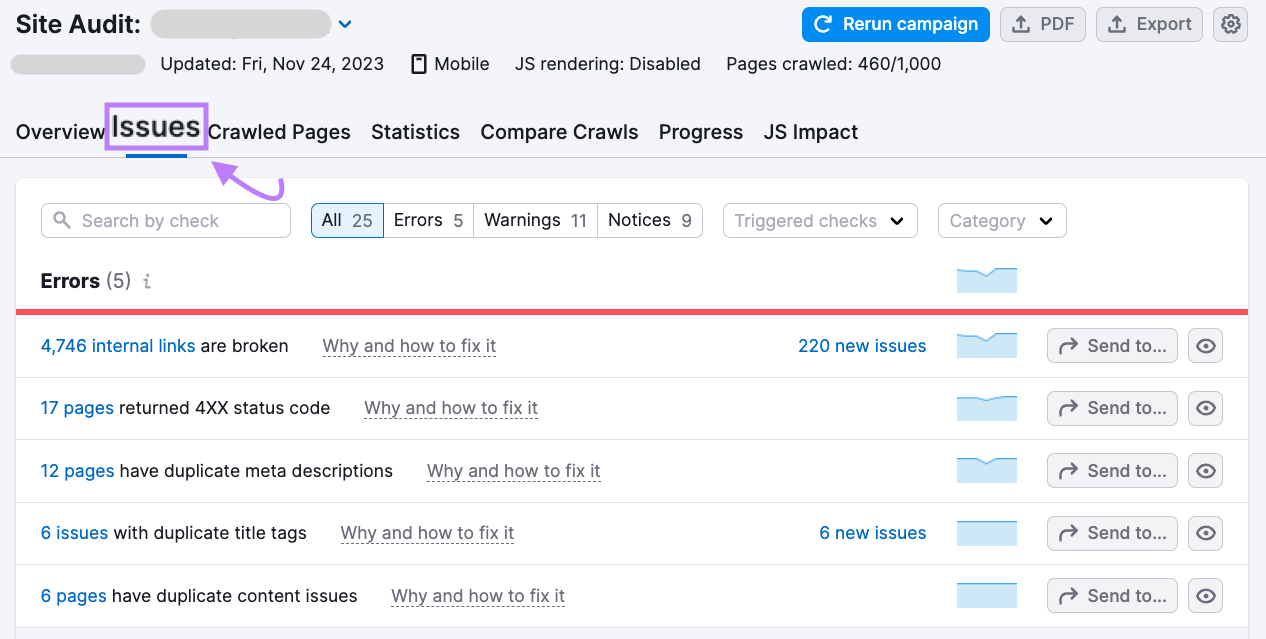
The Risk of Multiple Pages Having Identical Descriptions
Like duplicate title tags, duplicate meta descriptions can confuse search engines and negatively impact CTR. If multiple pages share the same description, search engines may:
- Randomly select a description or generate one from page content, which may not be optimised.
- Reduce user engagement, as repetitive descriptions across different pages fail to highlight unique content.
- Cause keyword dilution, making it harder for individual pages to stand out in search results.
How to Create Unique Descriptions for Better Search Visibility
- Write distinct descriptions that summarise the content of each page.
- Avoid generic phrases, instead using specific value-driven statements for each page.
- Use dynamic descriptions for large websites by incorporating unique page elements (e.g., “Shop Nike Running Shoes – Lightweight, Durable, and Built for Speed”).
- Regularly audit and update descriptions to align with search trends and user intent.
Sitemap and Indexing Issues
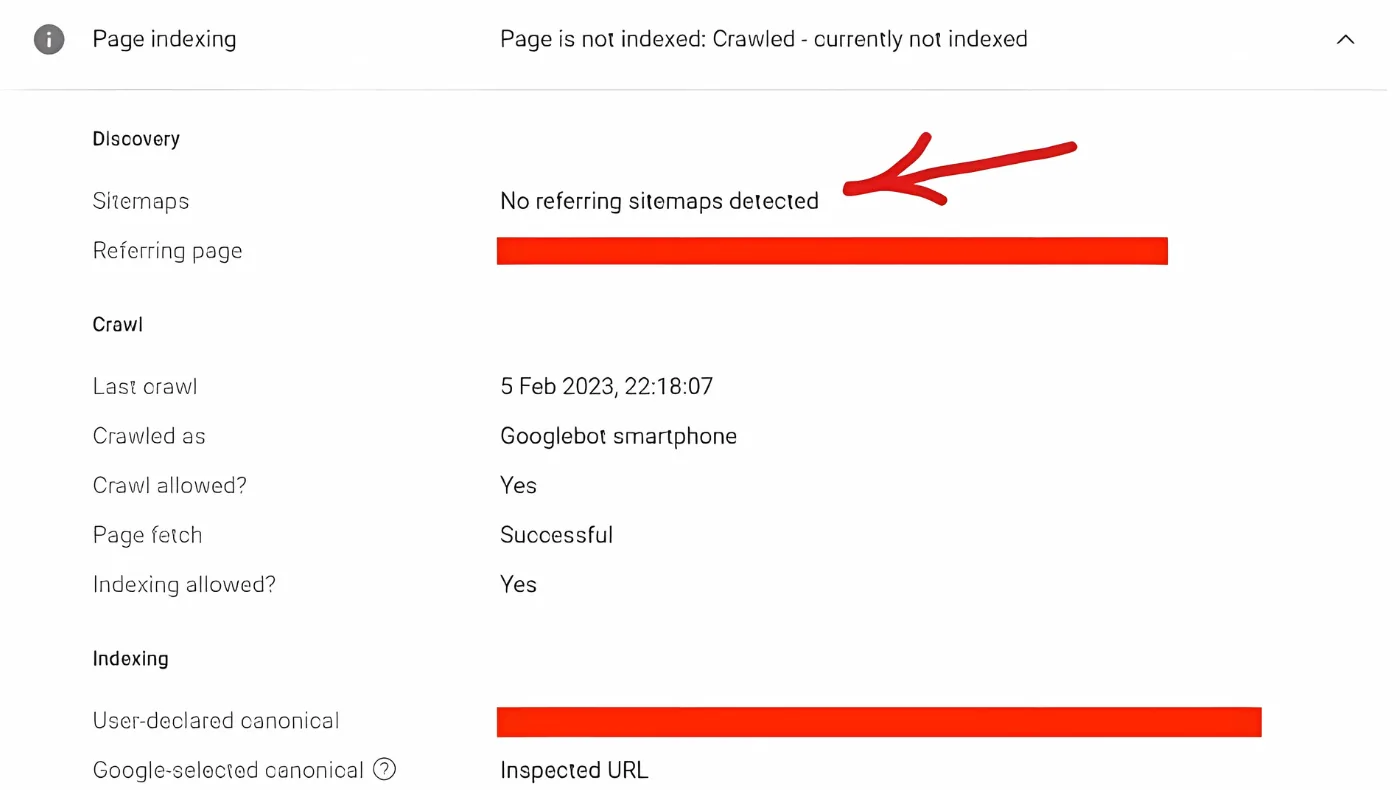
A well-structured sitemap and a properly configured robots.txt file ensure that search engines efficiently crawl and index a website. Errors in these files can prevent important pages from appearing in search results, leading to lower rankings and reduced organic traffic.
Incorrect Pages in Sitemap.xml
How Incorrect URLs in Sitemap Affect Indexing
The sitemap.xml file is a roadmap for search engine crawlers, helping them discover and index important pages. However, if incorrect URLs are listed, it can lead to:
- Wasted crawl budget, as search engines attempt to index non-existent or low-priority pages
- Indexing of unnecessary pages, such as test pages, outdated content, or parameterised URLs
- 404 errors in search console, if URLs in the sitemap no longer exist
Fixing Sitemap Errors Using XML Validation Tools
- Use Semrush Site Audit to detect incorrect or outdated URLs in the sitemap
- Validate the sitemap with Google Search Console (under the Sitemaps section) to identify submission errors
- Ensure only indexable URLs are included, avoiding noindex, redirected, or broken pages
- Regularly update the sitemap to reflect the current site structure and content
Sitemap.xml Formatting Errors
Common Sitemap Issues That Block Crawling
A poorly formatted sitemap can prevent search engines from properly crawling a website, leading to indexation issues. Some common problems include:
- Incorrect XML syntax, causing parsing errors
- Non-canonical URLs, which confuse search engines about the preferred version of a page
- Too many URLs in a single sitemap file (Google recommends limiting it to 50,000 URLs or 50MB)
Fix: Correcting Structure and Updating Robots.txt
- Validate the sitemap with our free sitemap validator
- Ensure correct formatting by following Google’s sitemap guidelines
- Break large sitemaps into multiple smaller files, and use a sitemap index file if needed
- Update the robots.txt file to reference the correct sitemap location using:
plaintext

Robots.txt Formatting Errors
Mistakes in Robots.txt That Block Important Pages
The robots.txt file controls which parts of a website search engine crawlers can access. Misconfigured rules can block essential pages from indexing, leading to severe SEO issues. Common mistakes include:
- Blocking the entire website (Disallow: / prevents search engines from crawling any page)
- Restricting important sections like category pages or blogs, preventing them from appearing in search results
- Conflicts with meta robots tags, where a page is allowed in robots.txt but set to noindex in the page’s metadata
Best Practices for Robots.txt to Control Crawler Behavior
- Check for accidental disallow rules with the robots.txt report in Google Search Console or our free robots.txt tester
- Ensure critical pages are not blocked, such as the homepage, category pages, and service pages
- Allow important bots like Googlebot while restricting unnecessary crawlers to save server resources
- Use precise blocking rules, avoiding broad disallow commands like

Instead, specify directories that should not be crawled, such as:

- Ensure sitemap.xml is referenced correctly in the robots.txt file.
Mobile and Performance Errors
In today’s mobile-first world, Google prioritises websites that offer a fast, responsive, and mobile-friendly experience. Errors related to mobile responsiveness and performance can lead to higher bounce rates, slower load times, and lower search rankings.
Pages Without Viewport Tags
Why Viewport Tags Are Crucial for Mobile SEO
The meta viewport tag tells browsers how to scale and display a webpage on different screen sizes. Without it, pages may appear zoomed out, improperly formatted, or difficult to navigate on mobile devices. Issues caused by missing viewport tags include:
- Poor mobile user experience, as text and images do not resize correctly
- Failed mobile usability, and because Google indexes the mobile version of every page (mobile-first indexing), a page that breaks on phones is judged in that broken state
- Higher bounce rates, since users struggle to interact with non-responsive pages
Fix: Adding Correct Meta Viewport Tags for Responsive Design
- Ensure all pages include a viewport meta tag in the <head> section:

- Use responsive design (CSS media queries) to adapt layouts for different screen sizes
- Test mobile-friendliness using Lighthouse in Chrome DevTools (Google retired its Mobile-Friendly Test in 2023)
- Avoid fixed-width elements that prevent proper scaling on smaller screens
Excessive HTML Size on Pages
How Bloated HTML Slows Down Websites
A large HTML file size increases page load time, hurting user experience and SEO rankings. Google favors fast-loading pages, and excessive HTML size can lead to:
- Longer server response times, delaying page rendering
- Worse Core Web Vitals: a slower Largest Contentful Paint (LCP), sluggish Interaction to Next Paint (INP, which replaced FID in March 2024) and more layout shift (CLS). Check real-user figures in Search Console’s Core Web Vitals report alongside Semrush
- Higher bounce rates, as users abandon slow-loading sites
Fix: Minifying HTML, CSS, and JavaScript
- Minify HTML, CSS and JavaScript. On WordPress, a caching or optimisation plugin such as LiteSpeed Cache, WP Rocket or Autoptimize does this with one setting; on custom builds use Terser for JavaScript and cssnano for CSS. Cloudflare’s old Auto Minify option was removed in 2024, so minify at the site itself.
- Cut page weight further: remove unused plugins and page-builder bloat, strip inline styles and scripts from the template, and lazy-load images below the fold.
- Enable Gzip or Brotli compression to reduce page file size
- Use asynchronous loading (async) for JavaScript files to prevent rendering delays
AMP Errors: Fix the Canonical Tag or Remove AMP
Why AMP Pages Need Canonical Tags
Accelerated Mobile Pages (AMP) was Google’s framework for stripped-down mobile pages. Since 2021 AMP has not been required for Top Stories or any other Google feature, and very few Pakistani sites still run it. If Semrush flags AMP errors, first ask whether you need AMP at all: most sites are better off deactivating the AMP plugin and redirecting the /amp/ URLs to the normal pages. If you keep it, every AMP page needs a canonical tag pointing to the original version; otherwise search engines may:
- Treat AMP and non-AMP pages as duplicate content, leading to indexing issues
- Fail to link AMP pages to their original counterparts, reducing ranking authority
- Display incorrect page versions in search results, affecting user navigation
Fix: Proper Canonicalization to Avoid Duplicate Content
- Ensure each AMP page includes a canonical tag pointing to the original version.

- Check the AMP report in Google Search Console (it only appears for sites that actually serve AMP pages).
- Test pages with the AMP Validator at validator.ampproject.org.
Hreflang Conflicts in Source Code
The Role of Hreflang in Multilingual SEO
Hreflang is an HTML attribute used to indicate a webpage’s language and regional targeting. It ensures that:
- The correct language version of a page is shown to users in different regions
- Search engines avoid duplicate content penalties by recognising different language versions as intentional
- User experience improves, as visitors land on the most relevant content for their location
When hreflang conflicts occur, search engines may struggle to determine the correct page version, leading to incorrect indexing and ranking issues.
Fix: Ensuring Correct Language and Regional Targeting
- Each page should have a self-referencing hreflang tag to confirm its language version:

- Hreflang annotations must be bidirectional—if example.com/es links to example.com/en, then example.com/en must link back to example.com/es.
- Use correct language and country codes based on ISO 639-1 for languages and ISO 3166-1 for regions. Example:

- Avoid mixing incorrect language-country codes (e.g., using en-UK instead of the correct en-GB for English in the United Kingdom).
- Check for missing return tags, as incomplete hreflang implementations can cause errors.
Invalid Hreflang Links
Common Hreflang Mistakes (Pointing to Incorrect URLs)
Incorrect hreflang links can cause search engines to ignore language targeting altogether. Some common mistakes include:
- Pointing hreflang tags to non-existent pages (404 errors)
- Using relative URLs instead of absolute URLs
- Mismatched hreflang implementation between pages
- Referencing pages blocked by robots.txt or marked as noindex
Fix: Using Hreflang Validation Tools to Correct Issues
- Crawl the site with Screaming Frog or Sitebulb (Search Console’s International Targeting report was retired in 2022) to detect hreflang errors
- Validate hreflang tags with Semrush Site Audit to identify incorrect or missing annotations
- Ensure all hreflang URLs are absolute, not relative (e.g., use https://example.com/es, not /es)
- Check if referenced pages are indexable and not blocked by robots.txt or noindex tags
- Use hreflang testing tools, such as:
Security and HTTPS Issues
Website security is critical for SEO and user trust. Google has explicitly stated that HTTPS is a ranking factor, meaning that sites without SSL certificates are disadvantaged in search results. Moreover, modern browsers warn users about insecure websites, which can significantly impact traffic and conversions.
Pages Not Using HTTPS
Why HTTPS Is a Ranking Factor
HTTPS (Hypertext Transfer Protocol Secure) encrypts data exchanged between users and the website, preventing security threats such as:
- Data interception (man-in-the-middle attacks) that compromise sensitive user information
- Phishing attacks, where malicious actors create fake versions of unsecured websites
- A ranking disadvantage, as Google favors secure sites and may flag HTTP pages as “Not Secure”
Using HTTPS improves SEO and user trust by:
- Providing a small ranking signal (Google has called it lightweight), while Chrome 154 (October 2026) warns before opening any public HTTP site
- Ensuring secure transactions, especially for e-commerce and login-based sites
- Preventing browser security warnings, which can deter visitors from staying on a site
Fix: Installing SSL Certificates and Updating Mixed Content
- Install an SSL certificate. On cPanel hosting, which most Pakistani hosts use, AutoSSL issues a free certificate automatically once the domain points at the server; Cloudflare’s free plan and Let’s Encrypt are the other no-cost options.
- Redirect every HTTP URL to HTTPS with a 301 and clear up mixed content; the full steps, including the .htaccess rule, are in the next section.
Redirects and Mixed Content: Completing the HTTPS Fix
Installing an SSL certificate is only the first step. Semrush will keep reporting HTTPS errors until every URL and resource uses HTTPS.
1. Redirect HTTP to HTTPS
On an Apache server, a common rule in the .htaccess file is:
RewriteEngine On
RewriteCond %{HTTPS} off
RewriteRule ^(.*)$ https://%{HTTP_HOST}/$1 [L,R=301]
Put these three lines near the top of the file, in this order. On cPanel hosting you can also tick “Force HTTPS Redirect” in the Domains screen, and Cloudflare offers an “Always Use HTTPS” setting that does the same job without editing files. Use one method, not two, to avoid redirect loops.
2. Fix mixed content
- Search your database and theme files for
http://links to your own domain and update them tohttps://. On WordPress, a search-and-replace plugin can do this safely after a backup. - Update image, script, stylesheet and font URLs, not only page links.
- Open Chrome DevTools on key pages and check the Console for mixed content warnings.
3. Update everything that points to the old URLs
- Canonical tags, hreflang tags and the XML sitemap should all list HTTPS URLs.
- Make sure the HTTPS version of the site is verified in Google Search Console. A domain property covers both versions.
- Avoid redirect chains, such as HTTP to HTTPS to www. Each old URL should reach its final URL in one hop; our free redirect checker shows the full chain for any URL.
This matters more from October 2026: Chrome 154 turns on “Always Use Secure Connections” by default and shows a full-page warning before opening any public site that still runs on HTTP. Finally, re-run the Semrush Site Audit to confirm the HTTPS errors are cleared.
How Semrush Names These Errors in the Report
Semrush reworked the Site Audit interface in 2025, with a new issues layout and AI-written explanations next to each check, but the error names are stable. Use this table to match the sections above to the labels in your own report (wording as of October 2026; the counts at the start of each label will be your own).
| Section in this guide | Semrush error label |
|---|---|
| 5XX status codes | “pages returned a 5XX status code” |
| 4XX status codes | “pages returned a 4XX status code” |
| Broken internal links | “internal links are broken” |
| Broken internal images | “internal images are broken” |
| DNS issues | “pages couldn't be crawled (DNS resolution issues)” |
| Incorrect URL formats | “pages have incorrect URL formats” (reported when Semrush cannot crawl the URL) |
| Duplicate and missing titles | “pages have duplicate title tags”, “pages don't have title tags” |
| Duplicate content | “pages have duplicate content issues” |
| Duplicate meta descriptions | “pages have duplicate meta descriptions” (a missing meta description is a warning, not an error) |
| Sitemap problems | “incorrect pages found in sitemap.xml”, “sitemap.xml files have format errors” |
| Robots.txt problems | “robots.txt file has format errors” |
| Viewport, page size, AMP | “pages don't have a viewport tag”, “pages have too large HTML size”, “AMP pages have no canonical tag” |
| Hreflang | “issues with hreflang values”, “pages have hreflang conflicts within page source code”, “issues with incorrect hreflang links” |
| HTTPS | “pages don't use HTTPS”, plus HTTPS-specific checks for certificate expiry and mixed content |
Semrush also reports a few errors this guide does not cover in detail: broken external JavaScript and CSS files, a WWW resolve issue (both www and non-www versions answering without a redirect), invalid structured data items (check them with Google's Rich Results Test or our free schema validator), and pages that return a redirect loop. Treat them the same way: fix the template once, then re-crawl.
Frequently asked questions
What is the difference between errors, warnings and notices in Semrush?
Errors are the most serious issues, such as broken pages, server errors and blocked crawling, and should be fixed first. Warnings are problems that can hurt SEO or user experience but are less urgent. Notices are informational checks that may or may not need action. Work through them in that order to get the biggest gains first.
How do I improve my Semrush Site Health score?
Site Health is driven by the errors and warnings Semrush finds, so fixing those raises it; notices do not affect the score. Start with errors that affect many pages, such as a template issue repeated across the site. After fixing, re-run the audit so Semrush recrawls the pages and updates the score.
Should I fix AMP errors or just remove AMP?
For most sites, remove it. Google stopped requiring AMP for Top Stories and other features in 2021, and a normal mobile page that passes Core Web Vitals performs just as well. Deactivate the AMP plugin, redirect the old /amp/ URLs to the standard pages with 301s, and the AMP errors disappear on the next crawl. Keep AMP only if you have a specific reason, and then make sure every AMP page has a canonical tag.
Why does Semrush show errors that Google Search Console does not?
Semrush crawls your site with its own bot and flags anything that breaks its checks, even on pages Google rarely visits. Search Console only reports what Googlebot found and how Google indexed it. Use Semrush to find technical problems early, and Search Console to confirm which issues actually affect your pages in Google.
How often should I run a Semrush site audit?
Schedule an audit at least monthly for most sites, and weekly for large or frequently updated sites such as online stores. Always run one after a redesign, migration, plugin update or major content change, because these are the moments new errors usually appear. Semrush lets you schedule recurring audits so you do not have to remember.